What if the reason you’re losing fights in Valorant isn’t your skill—but your PC struggling to keep up?
In a tactical shooter like Valorant, smooth gameplay matters a lot. Even small frame drops or input lag can affect:
- Aim accuracy
- Reaction time
- Movement control
The good news? Valorant is already optimized better than many modern shooters, and with the right settings, even low-end PCs can run it smoothly in 2025–2026.
This guide focuses on maximizing:
- FPS
- Stability
- Responsiveness
without making the game unplayable visually.
Why FPS Matters So Much in Valorant
Valorant is heavily reaction-based.
Higher and more stable FPS gives:
- Smoother aiming
- Faster visual response
- Better enemy tracking
👉 Consistent FPS is more important than ultra graphics.
Best Video Settings for Low-End PCs
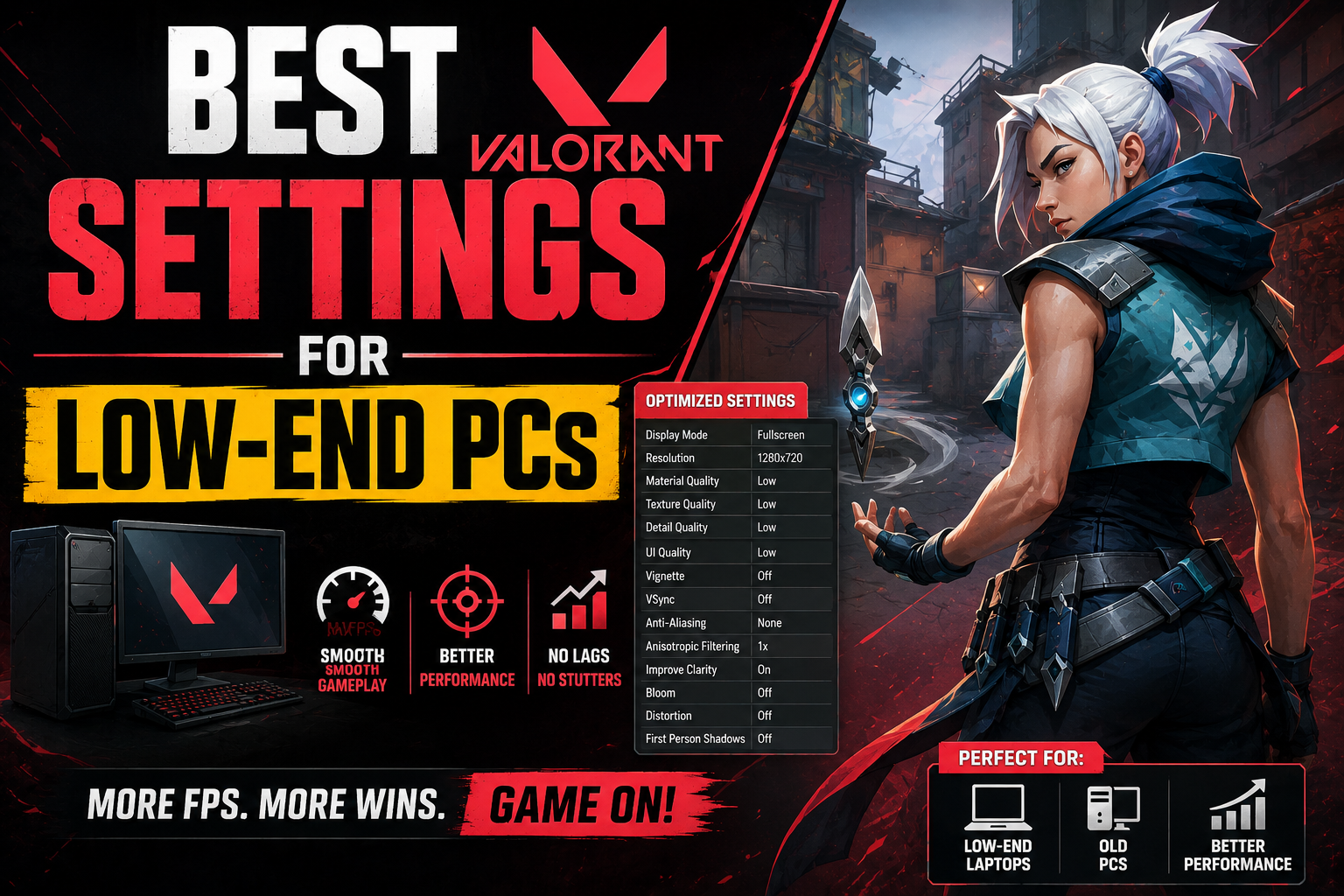
Display Mode: Fullscreen
Best Setting
- Fullscreen
Why It Helps
Fullscreen reduces background rendering and improves performance.
👉 Always avoid Windowed mode for competitive play.
Resolution: Lower for Better FPS
Recommended Options
- 1920×1080 (if stable)
- 1600×900
- 1280×720 for very weak PCs
Why It Works
Lower resolution reduces GPU load and increases FPS significantly.
👉 If FPS is unstable, lowering resolution gives the biggest boost.
Limit FPS Properly
Recommended
- Cap FPS slightly above monitor refresh rate
Example:
- 60Hz monitor → cap around 120 FPS if possible
Why This Helps
Stable FPS feels smoother than constantly fluctuating FPS.
Graphics Quality Settings (Best Competitive Setup)
Material Quality
- Low
Texture Quality
- Low or Medium
Detail Quality
- Low
UI Quality
- Low
Vignette
- Off
VSync
- Off
Anti-Aliasing
- None or MSAA 2x
Anisotropic Filtering
- 1x or 2x
Improve Clarity
- On (optional)
Bloom
- Off
Distortion
- Off
Cast Shadows
- Off
Why These Settings Matter
Most visual effects reduce FPS without improving gameplay.
👉 Competitive players prioritize visibility and performance.
Best Nvidia / AMD Settings (If Available)
Nvidia Control Panel
Key Settings
- Power Management → Prefer Maximum Performance
- Low Latency Mode → On
- Texture Filtering → High Performance
AMD Equivalent
Use:
- Performance-focused graphics settings
- Anti-lag features if supported
👉 GPU control panel optimization can improve frame stability.
Optimize Windows for Better FPS
Many FPS issues come from background processes—not the game itself.
1. Disable Startup Apps
Too many startup apps consume RAM and CPU resources.
2. Enable Game Mode
Windows Game Mode prioritizes gaming performance.
3. Close Background Programs
Especially:
- Browsers
- Recording software
- Heavy applications
4. Update Drivers
Updated GPU drivers often improve stability and FPS.
Best Mouse Settings for Smooth Gameplay
FPS alone isn’t enough.
Recommended Mouse Settings
DPI
- 400–800
In-Game Sensitivity
- Low to medium sensitivity
Raw Input Buffer
- On
👉 Stable mouse input improves aiming consistency.
Best Audio Settings for Competitive Advantage
Sound matters heavily in Valorant.
Recommended
- HRTF → On
- Music volume → Low or Off
- Voice clarity prioritized
Why It Helps
Footsteps and directional audio become easier to hear.
Low-End PC FPS Boost Tricks
Lower Resolution Scaling
If necessary:
- Reduce rendering resolution slightly
Disable Hardware Acceleration in Background Apps
Especially Discord and browsers.
Keep Temperatures Low
Overheating reduces performance.
Easy Cooling Tips
- Clean dust regularly
- Improve airflow
- Avoid gaming on soft surfaces
Common Mistakes Low-End Players Make
Using High Graphics for “Better Looks”
Valorant is competitive—not cinematic.
Leaving Background Apps Open
This wastes valuable RAM and CPU power.
Uncapped FPS
Unstable FPS often feels worse than capped FPS.
Ignoring Input Lag
Smooth input matters as much as FPS.
Valorant Performance Trends
Modern updates are changing optimization slightly.
Current Trends
- More visual effects in skins and maps
- Better CPU optimization from Riot
- Increased demand for stable frame pacing
👉 Even budget systems can still run Valorant effectively with optimization.
Example Best Settings Setup (Balanced)
For Very Low-End PCs
- Resolution → 1280×720
- All graphics → Low
- VSync → Off
- FPS cap → 120
For Mid-Low PCs
- Resolution → 1600×900 or 1080p
- Textures → Medium
- Effects → Low
- FPS cap → Based on monitor refresh rate
Real-Life Scenario: Why Settings Matter
Player A:
- Uses high graphics
- Gets unstable FPS
- Experiences input lag
Player B:
- Uses optimized settings
- Gets smoother gameplay
- Lands shots more consistently
👉 Smooth performance directly improves gameplay.
Conclusion: Smooth Gameplay Wins More Matches
In Valorant, performance matters more than visual quality, especially on low-end PCs where every frame counts. By lowering unnecessary graphics settings, optimizing Windows and GPU settings, and focusing on stability instead of appearance, you can dramatically improve responsiveness, aiming consistency, and overall gameplay experience. The goal is not to make the game look perfect—it’s to make it feel smooth and reliable during intense fights. With the right setup, even older or budget systems can run Valorant competitively, proving that smart optimization can often matter more than expensive hardware.